# Titra on Synology nas DSM
If your system do support Docker ( [here the list](https://www.synology.com/it-it/dsm/packages/Docker) ) go and install it from the Synology package center.
**Once you have Docker installed open the package and go to the Registry menu to search for the images we need to run Titra.**
[](https://user-images.githubusercontent.com/34745293/93575601-26d51500-f99a-11ea-93cf-5f6d87d39b7c.png)Search for titra and double click on the titraio/titra to download the Titra’s image.
Select from dropdown the [latest](https://github.com/kromitgmbh/titra/releases/latest) version available (latest tag is not working for me so i choose 0.29.0 manually)
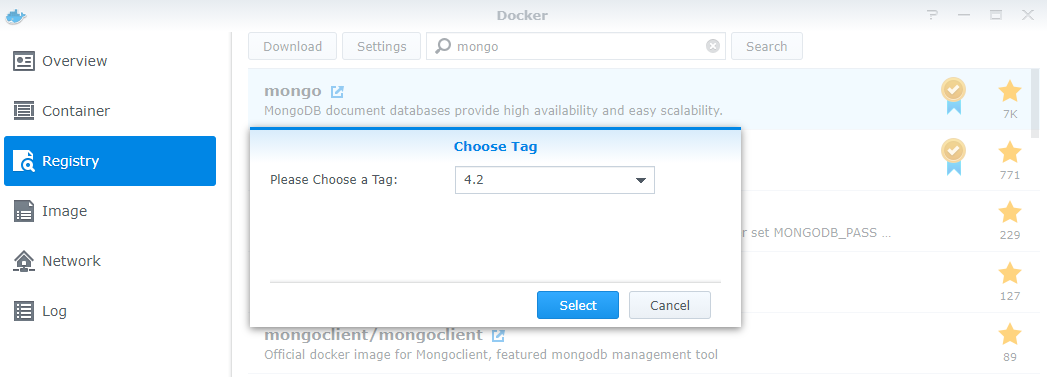
Next image needed is mongo for the mongodb
**Go again in Registry and search for mongo to download 4.2 version**
[](https://user-images.githubusercontent.com/34745293/93576547-4a4c8f80-f99b-11ea-8be2-00de2df528dc.png)Once the images are downloaded go to Image section and there you’ll find them.
**Now it’s time to create Containers from the images.**
**At first we create the db container**
double click on the mongo image and select a name for the container (e.g. mongodb)
[](https://user-images.githubusercontent.com/34745293/93577935-f347ba00-f99c-11ea-8bfa-469f86a2c9fe.png)**click Next and then uncheck “Run this container after the wizard is finished” before clicking Apply**
Now go to container section and EDIT the mongodb container to set up a Volume for data persistency
[](https://user-images.githubusercontent.com/34745293/93578271-681af400-f99d-11ea-9946-a58ed75df126.png)click Add Folder and select a folder on your nas to store the db datas as mount path set **/data/db** and then apply.
Now start the container with the toggle you see right next to it and wait some time to have it up.
**if you double click on container and go in LOG label you’ll see something like this
`NETWORK [listener] Listening on 0.0.0.0`**
meaning mongodb is up and listening on all interfaces.
**Go back to images section, now is time for creating Titra container and linking it to mongodb**
**Double** click on Titra image, choose a name for it and click the advanced button
[](https://user-images.githubusercontent.com/34745293/93579211-82090680-f99e-11ea-8de8-7edf7a26730c.png)**Go to port settings and choose a local port that is free on your system, don’t touch container port.**
**Now switch to Links label and click + Button to link Titra container to mongodb container**
[](https://user-images.githubusercontent.com/34745293/93579553-e75cf780-f99e-11ea-9c86-a32e7a43d485.png)**Now switch to Environment tab and set 2 new variables for the container**
[](https://user-images.githubusercontent.com/34745293/93579759-2a1ecf80-f99f-11ea-8a6d-8b6a7d63092b.png)They must be set accordingly to your container configuration
For example:
`ROOT_URL = http://10.0.1.100:3000`
and
`MONGO_URL = mongodb://mongodb:27017/titra`
**as 10.0.1.100 is my local lan NAS ip**
Now go Next and click apply to have the container running.
Docker could alert you that mongodb was started because its needed to Titra (it’s ok it’s our goal)
**In container section you must see both container running**
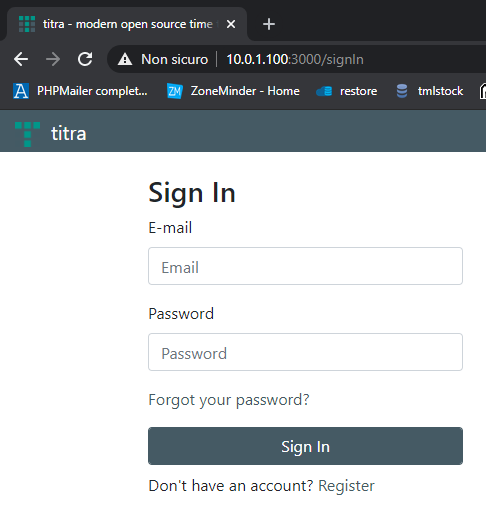
[](https://user-images.githubusercontent.com/34745293/93580840-99e18a00-f9a0-11ea-920a-af12098979bf.png)Let’s test if everythings gone right
open your broswer and point it to [http://nasip:port](http://nasipport) choosen before Titra should be working ?
[](https://user-images.githubusercontent.com/34745293/93580985-d1503680-f9a0-11ea-976a-1d8c3b661c7a.png)##### Tutorial by github.com/**[tomonetml](https://github.com/tomonetml)**