# Custom Fields
In the **Custom fields** page of the Administration menu, new custom fields can be created by the administrator.
[](https://wiki.titra.io/uploads/images/gallery/2023-01/bildschirmfoto-2023-01-31-um-14-33-17.png)
First of all, a class for the new field has to be chosen, the options are: **Project** or **Time** **entry**:
[](https://wiki.titra.io/uploads/images/gallery/2023-01/bildschirmfoto-2023-01-31-um-14-34-55.png)
After selecting the class, the fields for Name, Description, Type and Possible values have to be filled in.
No spaces or special characters are allowed for the Name!
[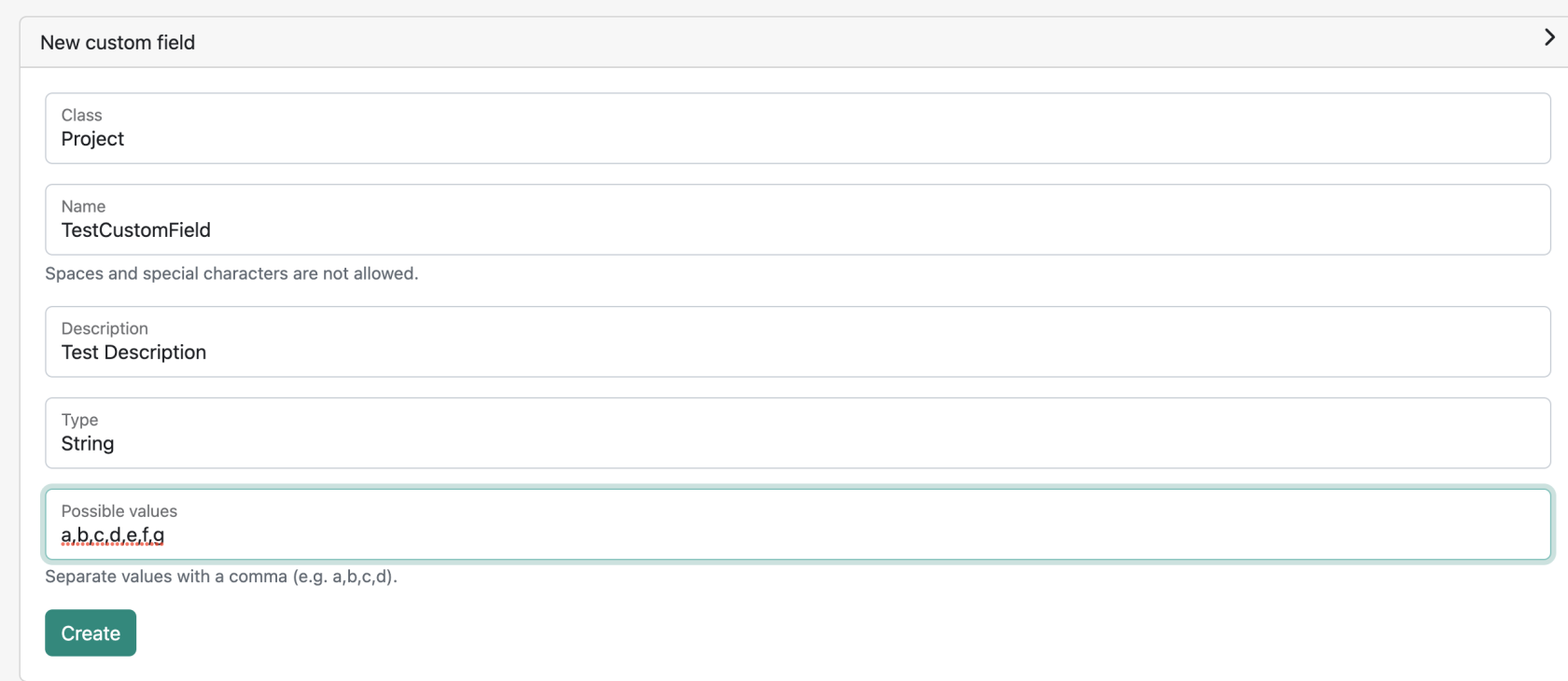](https://wiki.titra.io/uploads/images/gallery/2023-01/bildschirmfoto-2023-01-31-um-14-38-09.png)
By clicking on "**Create**", the new custom field will be displayed, as shown below
[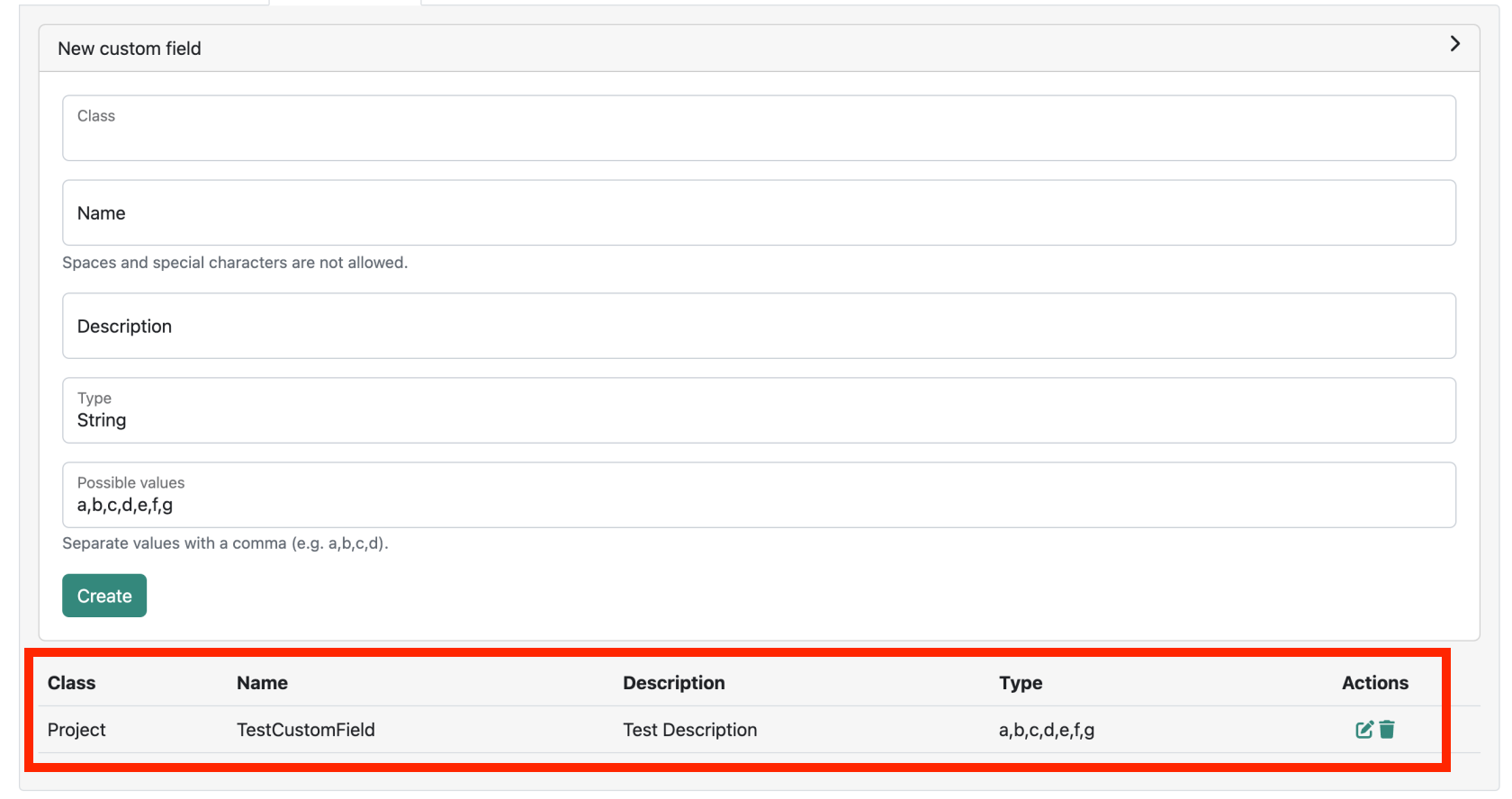](https://wiki.titra.io/uploads/images/gallery/2023-01/pJtbildschirmfoto-2023-01-31-um-14-42-47.png)
It is possible to **edit** and **delete** a created custom field by clicking on the corresponding icon under the **Actions** Section